
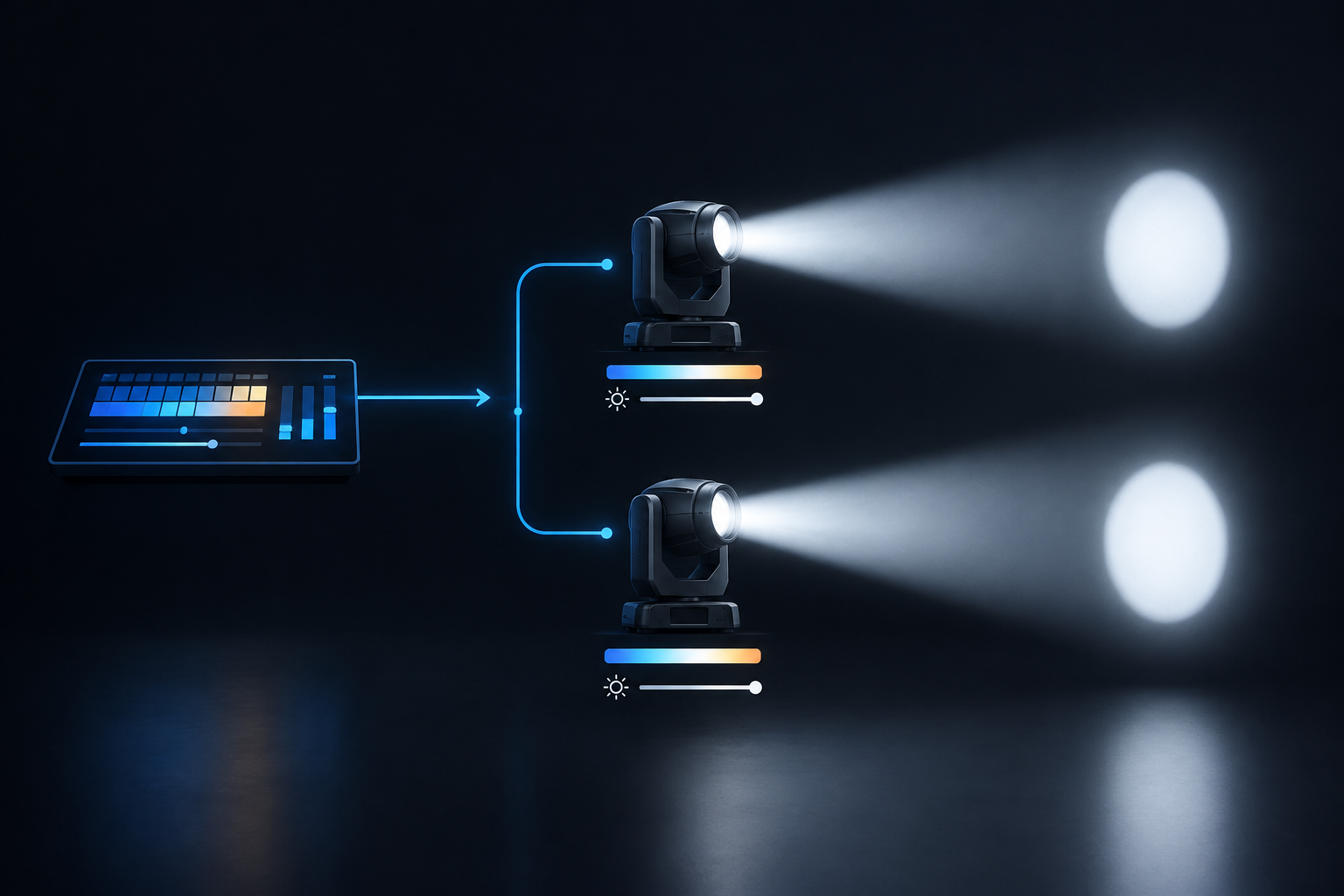
Why Are My Fixtures Not Matching in Color or Intensity?
If two fixtures of the same model do not match in color or intensity, first determine whether the difference is coming from the console/control system or from the fixture itself.
Start Here: Compare to a Known Working Fixture
If possible:
Find another fixture of the same model that is operating normally.
Temporarily set the affected fixture to the same DMX starting address as the working fixture.
Make sure both fixtures are receiving data from the same DMX universe or control source.
Send a simple look such as open white at 100% intensity.
If Both Fixtures Match at the Same Address
The difference is more likely related to the console or control side.
Check:
Fixture patch / profile — Confirm the correct fixture profile or personality is being used.
DMX patching / addressing — Confirm the correct universe and starting address and check for unintended overlaps.
Fixture-specific programming — Check for individual intensity, color, color-temperature, presets, palettes, effects, programmer values, or other programming applied only to that fixture.
Offsets / corrections — Check for fixture-specific intensity, color, or other corrections.
If the Difference Remains at the Same Address
The difference is more likely related to the fixture or its settings.
Compare the affected fixture with the known working fixture and check:
DMX Mode — Make sure both fixtures are using the same mode.
Dimmer Mode / dimmer curve — If the fixtures match at full output but separate as they dim, check these settings first.
Color settings / calibration — If the color does not match, compare color temperature, color-management settings, and applicable calibration settings. For LED fixtures, test individual colors to see if one color is noticeably different.
Output / performance / fan settings — Different operating modes may affect available output or thermal behavior.
Refresh rate / LED frequency — If the fixtures look similar to the eye but different on camera, compare the refresh-rate settings and check the camera's frame rate and shutter settings.
Firmware — Compare firmware versions if the fixture behavior remains inconsistent.
Light source / operating hours — Compare fixture, LED, or lamp hours. For lamp-based fixtures, consider lamp age and replacement history. For LED fixtures, consider LED-module or light-source replacement history.
Optics / physical condition — Check zoom, frost, lenses, filters, diffusion, dirt, haze residue, or other optical differences that may affect perceived output.
Operating conditions — Make sure both fixtures have had similar warm-up time and have normal airflow, fan operation, and operating temperatures.
Service history — Check whether either fixture has had a light source, LED module, optical component, or other relevant component replaced.
Do not manually alter factory calibration values unless instructed by Elation documentation or Elation Technical Support.
Still Not Matching?
If fixtures of the same model still show a significant color or intensity difference after these checks, contact Elation Technical Support.
Provide as much of the following information as possible:
Fixture Information
Fixture model and serial numbers
Firmware versions
DMX Mode
Dimmer Mode / dimmer curve
Relevant color, output, fan, or refresh-rate settings
Fixture / light-source / lamp operating hours
Previous light-source, LED-module, optical, or relevant component replacements
Describe the Difference
Color mismatch, intensity mismatch, or both
Whether the difference is present at full output
Whether it becomes more noticeable while dimming
Whether one specific color is affected
Whether the difference is visible to the eye, on camera, or both
Whether the fixture matches when temporarily given the same address as a known working fixture
Photos or Video
If possible, provide:
Photos or video showing both fixtures side by side
Examples at full and reduced intensity