
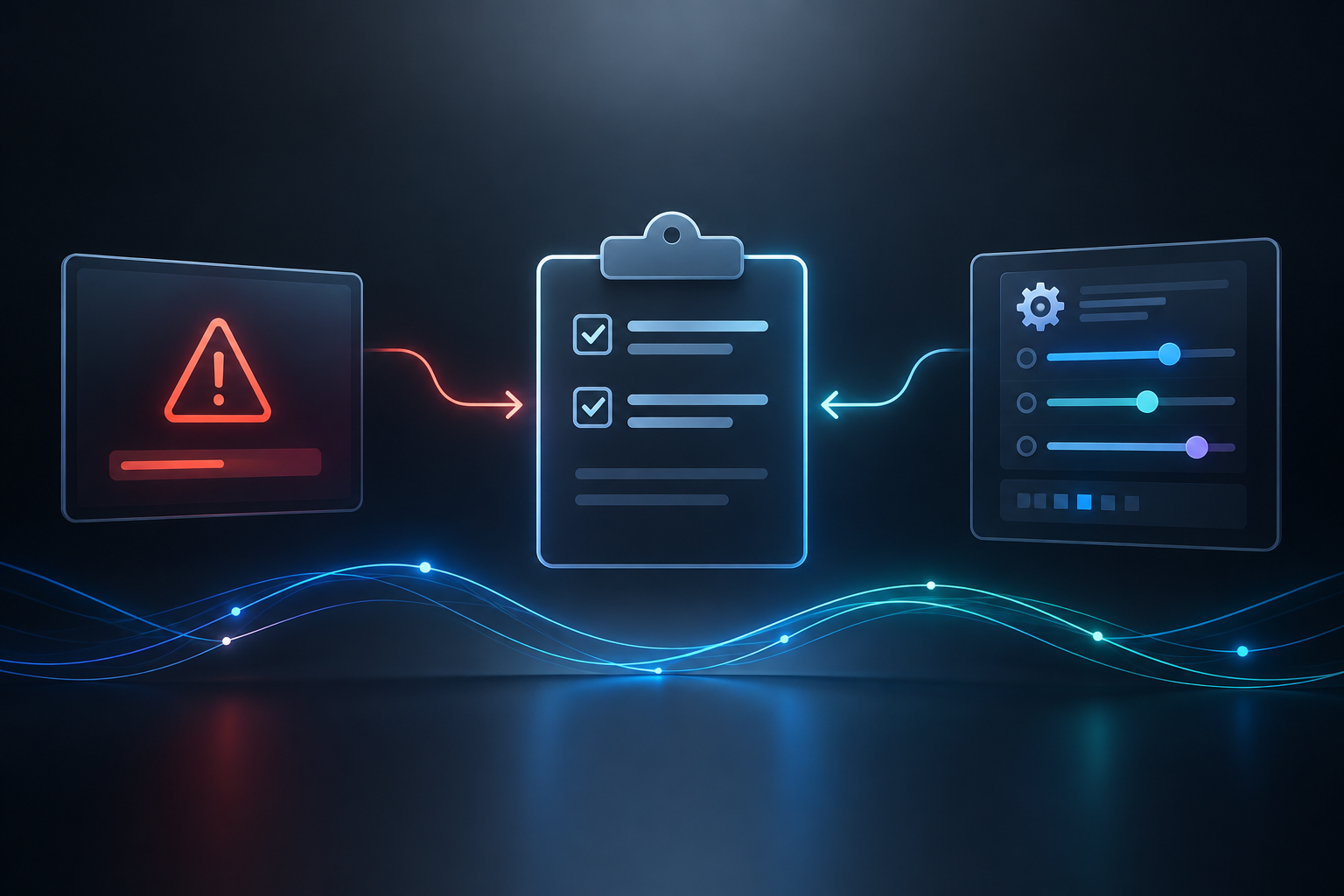
Before submitting a Technical Support request, please complete the following basic troubleshooting steps. These checks can often resolve common issues and will help our Technical Support team assist you more efficiently.
1. Check for Errors
Confirm whether the fixture or device is displaying any error messages or error codes on the display, if applicable.
If an error is present, please make note of the exact error message or code and include it with your Technical Support request.
2. Verify Your Settings
If the unit is error-free, review the current menu settings and confirm they are appropriate for your application. Incorrect or unintentionally changed settings can sometimes cause unexpected operation.
3. Perform a Factory Reset
If you are unsure whether the settings are correct, we recommend performing a factory reset (hard reset) before proceeding.
The reset option is typically available through the Personality or Service section of the fixture's menu, depending on the model.
Please note: A factory reset will restore the unit's menu settings to their original factory defaults. Any custom settings may need to be reconfigured afterward.
4. Test the Unit Again
After completing the factory reset, test the unit again under normal operating conditions.
If the issue continues, please submit a Technical Support request and include:
The fixture or device model
Serial number
Any error messages or codes displayed
A detailed description of the issue
Whether a factory reset was performed
Any additional troubleshooting already completed
Providing this information will help our Technical Support team diagnose the issue more quickly and reduce unnecessary back-and-forth.
I