
sACN – Troubleshooting Network Control Issues
Streaming ACN (sACN / ANSI E1.31) is a network protocol used to distribute lighting control data over Ethernet.
If fixtures using sACN are flickering, dropping out, responding intermittently, or not responding at all, use the steps below to help determine whether the issue is related to the fixture, universe configuration, network, control source, or physical data path.
Best‑Practice Network Topology
Modern lighting consoles typically provide an Ethernet output, allowing many sACN universes to be transported over a single network connection. A common best-practice design connects the console to a managed Ethernet switch, with additional switches distributed throughout the venue as needed. On multicast networks, IGMP snooping can help switches direct each universe to ports with interested receivers, while an IGMP querier helps maintain multicast membership information. Correct configuration depends on the network design.
Many fixtures include an Ethernet port, allowing them to connect directly to the network. However, running individual Ethernet cables from the switch to every fixture is often impractical. In these cases, a daisy‑chain topology is commonly used. When daisy‑chaining is required, an Ethernet‑to‑DMX gateway (Node) is recommended. The node receives sACN from the switch and outputs DMX, which can then be looped through fixtures using standard DMX cabling.
Some fixtures provide two Ethernet ports labelled In and Out, enabling limited daisy-chaining of Ethernet itself. This can be useful when multiple fixtures require different universes. Keep Ethernet chains short and follow each manufacturer’s limits for fixture-to-fixture connections. A ten-hop maximum may be used as a conservative planning guideline, but it is not a universal Ethernet standard or a substitute for equipment specifications. Long chains can create additional points of failure, and some fixtures interrupt downstream connectivity when powered off. Wherever practical, connect devices back to distribution switches rather than building long fixture chains.
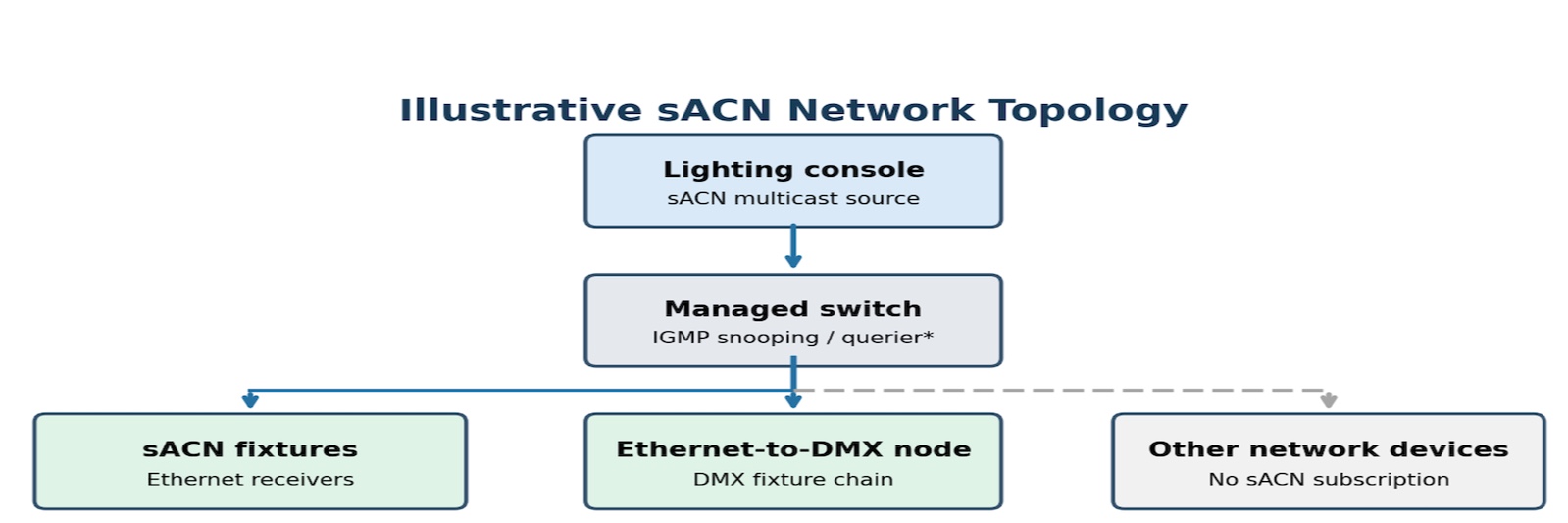
Example preferred topology: Console → Managed switch → (a) sACN fixtures / (b) Ethernet-to-DMX node → DMX fixture chain. Additional managed switches can serve other venue areas. This is a simplified illustration, not a wiring specification.
Illustration only. The querier may be on the switch or another suitable network device. Confirm settings for the actual VLAN and network design.
1. Determine How Many Fixtures Are Affected
Start by identifying the scope of the problem.
One fixture affected: Check that fixture’s network connection, universe, network settings, and Ethernet cable.
Several fixtures affected: Determine what they have in common, such as the same network switch, node, universe, or network path.
Entire system affected: Start with the console/control source and common network infrastructure.
Knowing where the problem begins can quickly help narrow down the cause.
2. Confirm the sACN Configuration
Check the configuration of the affected fixtures, nodes, and control source.
Confirm:
sACN is selected as the intended control protocol.
IP address and subnet settings are appropriate for the system configuration.
Devices do not have duplicate IP addresses.
The console/control source is transmitting the intended universe(s).
Receiving devices are configured for the correct universe(s).
Where possible, compare the settings of an affected device with a known-working device.
TIP: NETRON CLU 2.0 is a free Windows app that includes an sACN monitor. This is a helpful troubleshooting tool, as it allows you to connect your PC to any part on the network, and see what sACN data is received.
3. Check for Multiple sACN Sources
More than one console, computer, processor, or other source may be transmitting sACN on the network.
Check for:
Another console connected to the network.
Backup consoles or processors.
Lighting software running on another computer.
Test or configuration software that may still be transmitting.
Multiple sources transmitting the same universe.
If multiple sources are intentionally transmitting the same universe, verify that their sACN priority is correct for the intended operation.
An unintended second source can cause unexpected or inconsistent fixture behavior.
4. Check the Physical Network
Inspect the network path between the control source and the affected fixtures or nodes.
Check:
Ethernet cables and connectors.
Network switches.
Nodes / gateways.
Fixture Ethernet connections.
Adapters or other devices in the signal path.
Where possible:
Replace a suspect cable with a known-good cable.
Try another switch port.
Bypass unnecessary network devices.
Simplify the network temporarily and test again.
If the problem disappears as the network is simplified, reconnect components one at a time and test after each change.
IGMP in plain language
IGMP stands for Internet Group Management Protocol. In a multicast sACN network, receivers use IGMP to indicate which multicast groups they want to receive. Think of it as telling the network which lighting data is needed where. A managed switch with IGMP snooping can use that information to forward traffic only to interested ports instead of sending it everywhere. An IGMP querier helps keep that group-membership information up to date. IGMP is not required for every sACN design, and incorrect settings can prevent data from reaching fixtures.
5. Check Multicast Configuration
sACN commonly uses multicast to distribute universe data. In a managed lighting network, IGMP snooping allows switches to learn which ports have receivers interested in each multicast group (typically corresponding to an sACN universe). Without snooping, switches may flood multicast traffic to many ports. IGMP behavior and configuration requirements vary by switch, VLAN, and network design.
An IGMP querier periodically sends membership queries so receivers can report the multicast groups they want. Snooping switches observe these reports and maintain forwarding tables. For a simple, isolated lighting VLAN, it is often convenient to have the central switch provide the querier function. Multiple querier-capable devices are not automatically a problem: standard IGMP querier election normally determines which one is active on a subnet. Confirm that an appropriate querier is operating on each relevant VLAN or subnet where the design requires one.
If IGMP snooping is enabled but no functioning querier is present, multicast membership entries may age out. Depending on the switch and its treatment of unknown multicast traffic, sACN may become intermittent, stop reaching some receivers, or continue to be flooded. A system that works initially but fails after a period of time can therefore indicate an IGMP membership or querier issue, although other causes are possible.
If IGMP snooping is disabled, a switch will commonly flood multicast traffic across ports in the same VLAN. In systems carrying many sACN universes, this can consume unnecessary bandwidth and increase processing demands on connected devices. Whether this produces visible problems depends on traffic volume, switch behavior, and receiver capabilities.
If a multicast-related issue is suspected:
Confirm the network switches are appropriate for the lighting network.
Review the multicast configuration of managed switches.
Confirm IGMP-related settings are appropriate for the specific network design.
Determine whether the problem is isolated to a particular switch or network segment.
Temporarily isolate one console, one switch, and one receiver to narrow down the fault before making network-wide changes.
Compare behavior immediately after startup with behavior several minutes later; membership aging can help identify querier problems.
Check switch multicast membership tables, if available, to confirm expected receiver ports are listed.
Verify that affected receivers are joining the multicast groups for their assigned sACN universes.
Check whether IGMP snooping is enabled and consistently configured on the appropriate switches.
Confirm that the expected IGMP querier is active on the relevant VLAN or subnet.
Practical IGMP troubleshooting checklist
☐ Confirm the source and receivers use the intended sACN universes, IP settings, and VLANs.
☐ Check IGMP snooping settings on relevant switches and VLANs.
☐ Verify an IGMP querier is active where the network design requires one.
☐ Review multicast membership tables for expected receiver ports, if available.
☐ Confirm receivers join multicast groups for their assigned sACN universes.
☐ Check for multicast flooding, blocked traffic, and incorrect VLAN boundaries.
☐ Inspect switch ports for errors, dropped packets, and congestion.
☐ Compare behavior at startup and several minutes later; document results before making changes.
Do not change advanced network or switch settings unless you understand the system configuration or have guidance from the system/network administrator or Elation/Obsidian Technical Support.
6. Simplify the Network
If the cause is still unclear, reduce the system to the simplest practical configuration.
For example:
Console / Control Source → Network Switch → One Fixture or Node
Test the system again.
If it operates normally:
Add additional devices back one at a time.
Test after each change.
Note when the problem returns.
This can help identify the device or network segment introducing the issue.
7. Compare With Another Control Method
Where supported, test the affected fixture using another control method.
For example:
Test the fixture using direct DMX.
Compare direct DMX operation with sACN operation.
Where appropriate, test another control protocol supported by the equipment.
If the fixture operates normally using direct DMX but shows problems using sACN, this helps narrow the issue toward the network configuration, sACN source, or network data path.
8. Check Firmware and Software Versions
Confirm the equipment involved is running the appropriate current firmware/software.
Check:
Fixture firmware.
Netron/Obsidian device firmware, where applicable.
Console/control software.
Other network-control devices in the signal path.
Document the versions currently being used before making changes.
Still Having sACN Problems?
If the issue continues after completing these checks, submit a Technical Support request through the Elation Support Hub.
Please provide:
Fixture model(s).
Fixture firmware version(s).
Console/controller model and software version.
Netron/Obsidian device models and firmware versions, if applicable.
Number of affected fixtures.
sACN universe(s) involved.
Whether one fixture, several fixtures, or the entire system is affected.
Whether multiple sACN sources are present.
Network switch make/model.
Complete network/data path.
Whether the fixture operates normally using direct DMX.
Whether the issue is constant or intermittent.
Photos, video, or a simple network diagram, if helpful.
Providing the complete system configuration and results of the troubleshooting above will help Elation Technical Support determine whether the issue is associated with the fixture, control source, network configuration, or data infrastructure.
Note: Network configurations can vary significantly between systems. If you are unsure about IP addressing, multicast, IGMP, managed-switch configuration, or other advanced network settings, do not make changes that could affect the rest of the system. Contact your system/network administrator or Elation Technical Support for assistance.