
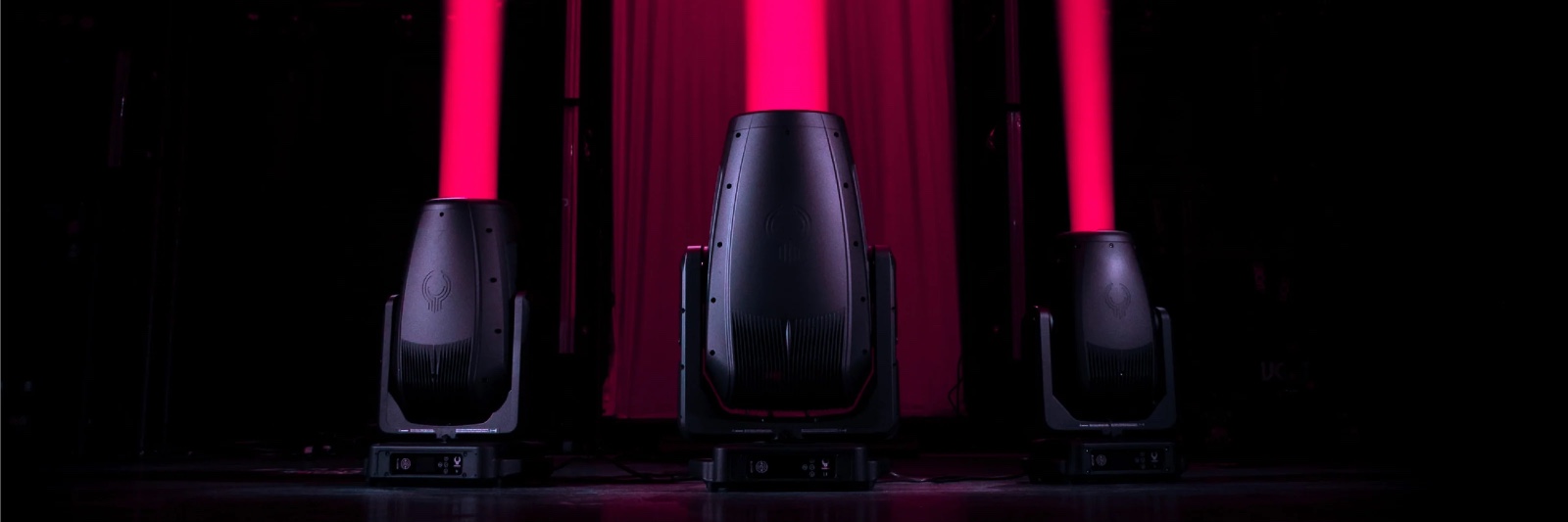
Paragon Series Critical Firmware Update
A new firmware update is now available for the Elation Paragon Series.
This is considered a critical firmware update and is strongly recommended for all applicable Paragon fixtures. The update addresses several known performance issues and includes improvements to fixture operation, networking, RDM, optics, color behavior, and control.
IMPORTANT: Fixtures running the new firmware may not behave identically to fixtures running previous firmware versions. Rental companies and production partners should update their complete Paragon inventory to the latest firmware before mixing fixtures within the same show or rental package.
Elation demo, showroom, and sales fixtures should also be updated so customers are always seeing the latest and best-performing version of the Paragon platform.
Download the Latest Paragon Firmware
Download the latest firmware for your specific Paragon model using the links below. Always confirm that you are downloading firmware for the correct fixture model before beginning an update.
Paragon S
Firmware & Release Notes:
https://forums.elationlighting.com/topic/paragon-s-fixture-firmware
Paragon M
Firmware & Release Notes:
https://forums.elationlighting.com/topic/paragon-m-fixture-firmware
Paragon LT
Firmware & Release Notes:
https://forums.elationlighting.com/topic/paragon-lt-fixture-firmware
Firmware updates for the Paragon Series are performed using the appropriate Elation firmware uploader. Always review the uploader instructions before attempting a firmware update.
Before You Update
Before updating a fixture, check the currently installed firmware version and compare it with the latest version available for your Paragon model.
The installed firmware version can be viewed through the fixture's onboard display.
Before beginning:
Confirm you have downloaded the correct firmware for your specific Paragon model.
Confirm the fixture is connected to a stable power source.
Review the applicable firmware uploader instructions.
Do not disconnect power or interrupt the fixture while the firmware update is in progress.
If updating a rental or production inventory, plan to update the complete inventory to maintain consistent fixture behavior.
What's Included in This Firmware Update
The latest Paragon firmware includes the following changes:
Preheat Modes
Added Preheat Mode functions designed to bring the fixture to the proper operating temperature when operating in cold environments.
RDM Optimization
Optimizations have been made to improve RDM operation and communication.
Art-Net Improvements
Updates have been made to improve Art-Net functionality and performance.
Updated Fan Labeling
Fan labeling has been revised for improved clarity within the fixture's settings.
Improved Focus Control with Fresnel Lens
Focus control has been improved when operating the fixture with the Fresnel lens.
Optimized Gobo Color Correction
Color correction when using gobos has been optimized for improved fixture performance and consistency.
Color Smoothing Default Changed
Color Smoothing is now set to Off as the default setting.
This is particularly important when comparing fixtures running different firmware versions. After updating, verify the Color Smoothing setting as part of your normal fixture setup.
Expanded Universe Range
Universe range options have been expanded to:
0–63999
Updating Your Paragon Fixtures
Before beginning the firmware update:
Make sure the fixture has stable, uninterrupted power.
Verify that you are using the correct firmware file for the fixture model.
Follow the instructions provided with the applicable Elation firmware uploader.
Do not turn off the fixture or disconnect the update connection while the update is running.
Allow the fixture to complete the update and restart if required.
After the update, check the firmware version again to confirm that the new firmware was successfully installed.
Verify fixture settings and basic operation before returning the fixture to service.
Important Information for Rental Companies
For rental and production inventories, we strongly recommend treating this as a fleet-wide update.
Do not update only selected fixtures if updated and non-updated fixtures are likely to be used together.
Fixtures operating with the latest firmware may respond differently from fixtures using previous firmware, which can create inconsistencies when multiple Paragon fixtures are used within the same production.
We recommend:
Updating all applicable Paragon fixtures within your inventory.
Confirming firmware versions before fixtures are assigned to a production.
Updating spare fixtures at the same time as active inventory.
Updating demo and showroom fixtures.
Checking fixture settings after updating, particularly Color Smoothing.
Testing several fixtures together before returning an updated fleet to rental circulation.
Troubleshooting a Firmware Update
If the firmware update does not complete successfully:
Confirm that the firmware file matches the correct Paragon fixture model.
Confirm that the fixture maintained continuous power throughout the update.
Download a fresh copy of the firmware package and retry the update.
Do not repeatedly interrupt or power-cycle the fixture while an update is taking place.
If the fixture does not respond normally following an unsuccessful update, contact Elation Technical Supportbefore attempting additional recovery procedures.
After Updating
Once the firmware update is complete:
Confirm the fixture reports the new firmware version.
Verify normal fixture startup and operation.
Check important user settings, particularly Color Smoothing.
Test DMX and network control as applicable.
For rental inventories, confirm that fixtures intended to operate together are running the same current firmware.
Need Help?
If you have questions about the Paragon firmware update, experience an unsuccessful update, or need assistance determining the correct firmware for your fixture, please contact Elation Technical Support through the Elation Support Hub.